

- Report threats from Slack: links, emails and phone numbers, with a slash command or from any message.
- Get alerts in a channel: new reports, blocklist additions and proposals that need your review.
- Ask the ChainPatrol Assistant: tag
@ChainPatrolin your shared channel with ChainPatrol to ask about your threats and takedowns. See ChainPatrol Assistant.
Setup
You need to be an Owner or Admin of your ChainPatrol organization, and allowed to install apps in your Slack workspace.1
Open the Slack integration
In the ChainPatrol app, go to Settings → Integrations and select the Slack tile.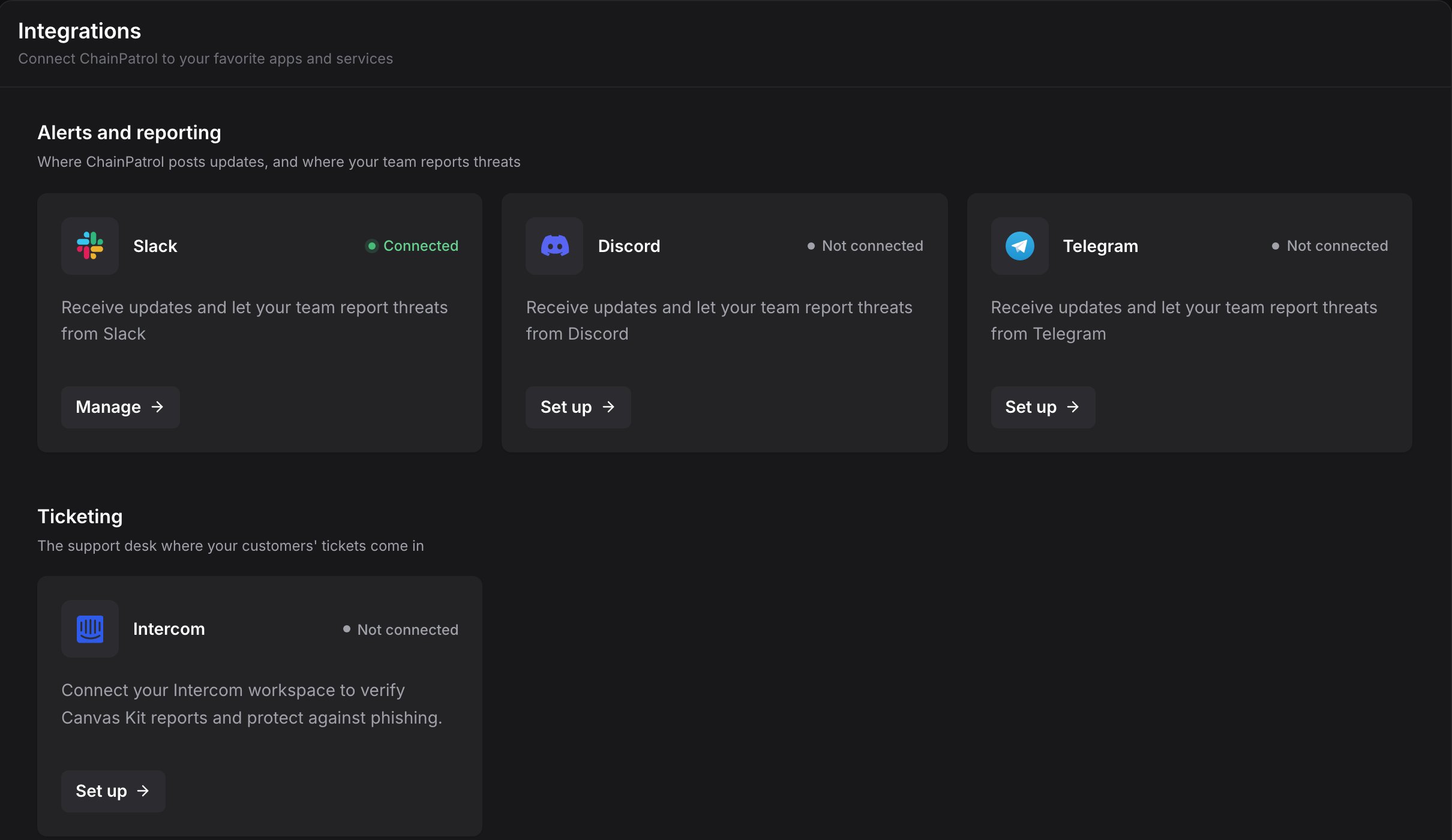
2
Click Add to Slack
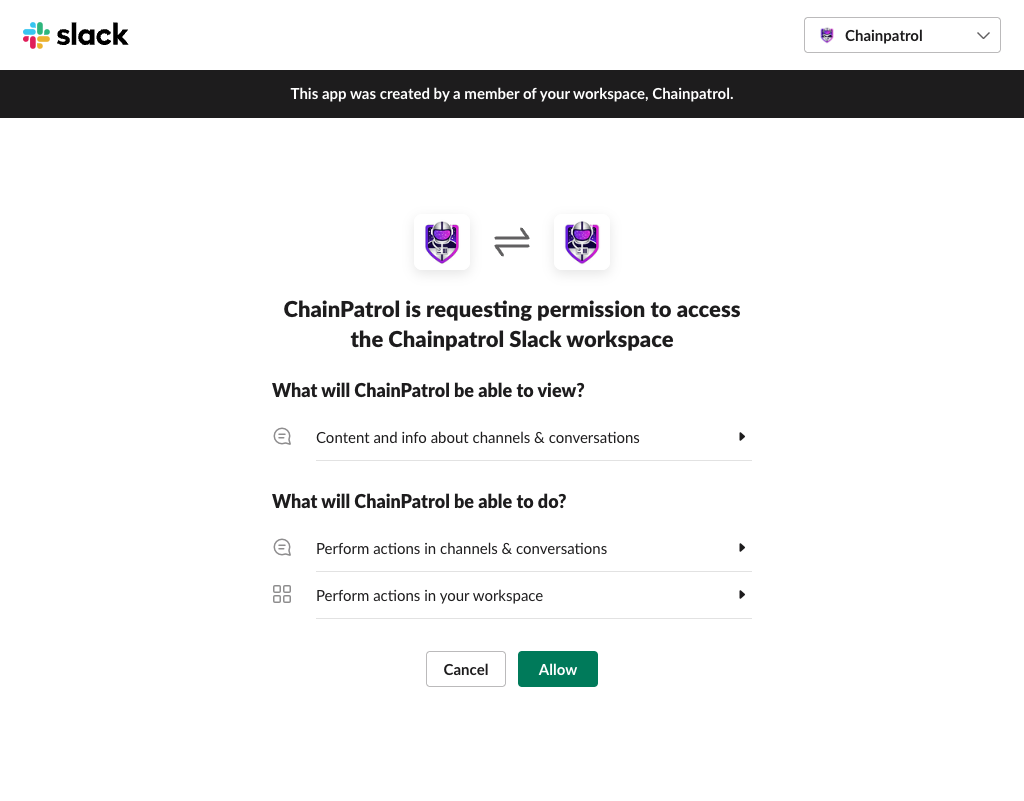
Click Add to Slack. Slack opens its permission screen. Check that the workspace at the top right is the one you want, then click Allow.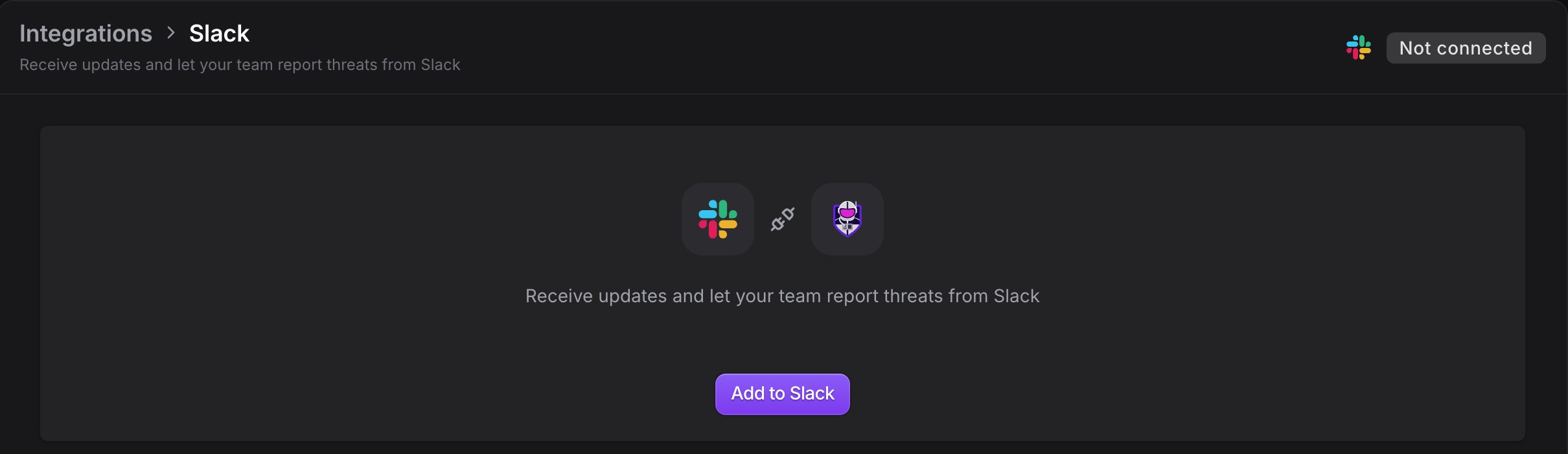
3
Choose your organization
Slack sends you back to ChainPatrol’s Connect Slack page. Sign in if asked, pick the organization this workspace belongs to, and click Connect. Reports filed from this workspace go to the organization you pick.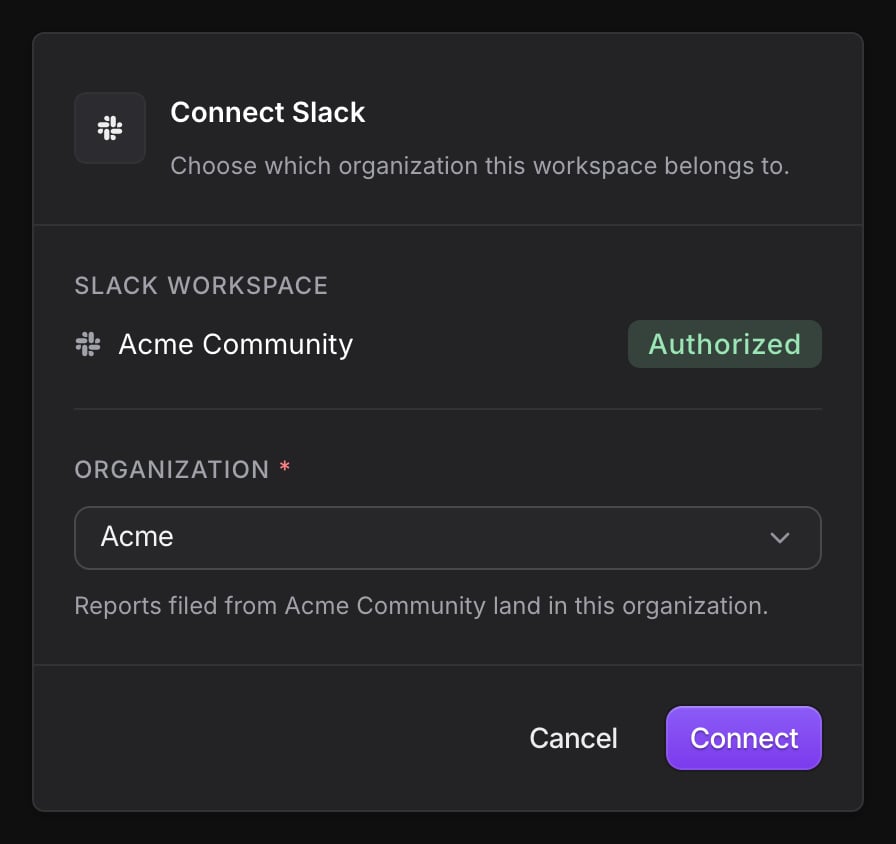
4
Set your alert channel
Back on the Slack integration page, your workspace is now listed. To get alerts, pick a channel for them: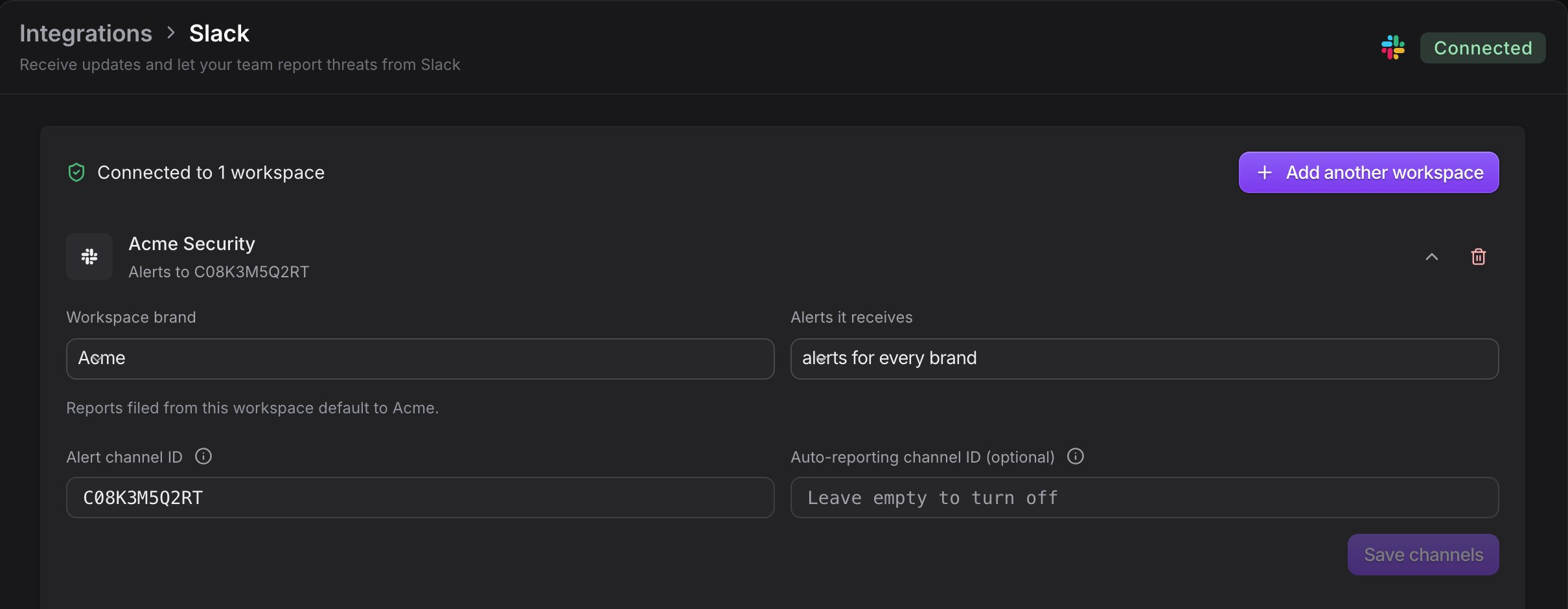
- In Slack, open the channel and send
/invite @ChainPatrol. - Open the channel’s details. On the About tab, copy the Channel ID (it starts with
C). - Paste it into Alert channel ID and click Save channels.
Report threats from Slack
Anyone in a connected workspace can report to your organization. Each report opens a form with these fields: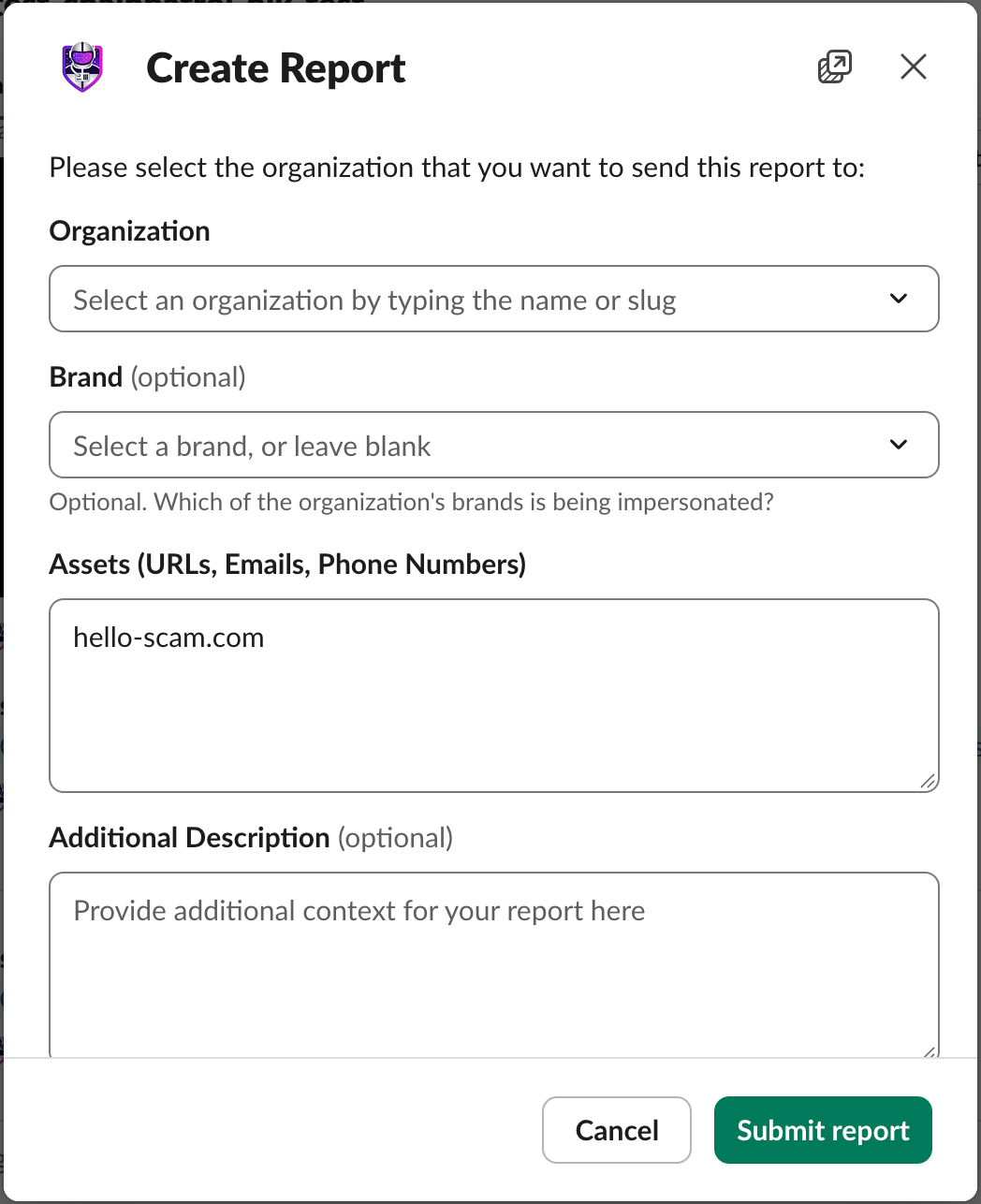
Slash command
Type/chainpatrol followed by what you want to report:
/chainpatrol on its own to open an empty form. When the report is created, the bot sends you a direct message with a link to the report.
From a message
Hover over a message, open the ⋮ (more actions) menu, and select Create Report. The form opens with the links from that message. When the report is created, the bot replies in the message’s thread and adds a ✅ reaction.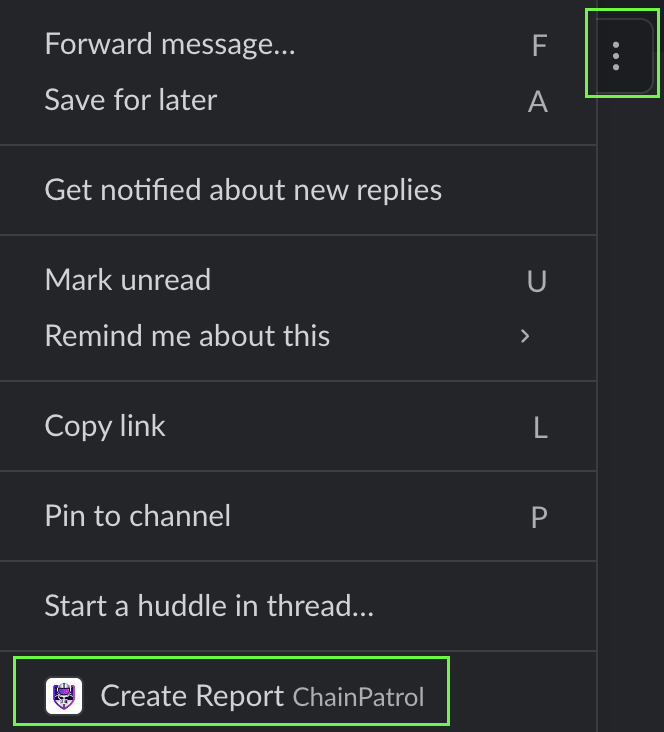
After you report
The confirmation shows the report ID, organization and brand, with a link to the report in ChainPatrol. It also has two buttons:- Add attachments: add screenshots if you didn’t attach any. Shown only when the report has none.
- Request Change/Cancel: tell the ChainPatrol team what’s wrong with the report, for example if you reported the wrong link.
In your shared channel with ChainPatrol
If you have a shared Slack channel (Slack Connect) with ChainPatrol, the bot can do more there:- Report prompts: when someone posts a link that isn’t on your allowlist, the bot replies in the thread asking “Would you like to create a report for:” with a Report button. The prompt expires after an hour. After that, use
/chainpatrolor the message menu instead. - Auto-reporting: set the shared channel as your Auto-reporting channel ID on the Slack integration page, and every link posted there is reported automatically. The bot replies in the thread with the result. If a link is already blocked or already reported, it says so instead.
The auto-reporting channel must be a channel shared between your workspace and
ChainPatrol. Leave the field empty to turn auto-reporting off.
Alerts
The bot posts alerts to each workspace’s alert channel. Choose which alerts it posts on Settings → Notifications, in the Slack & Discord tab.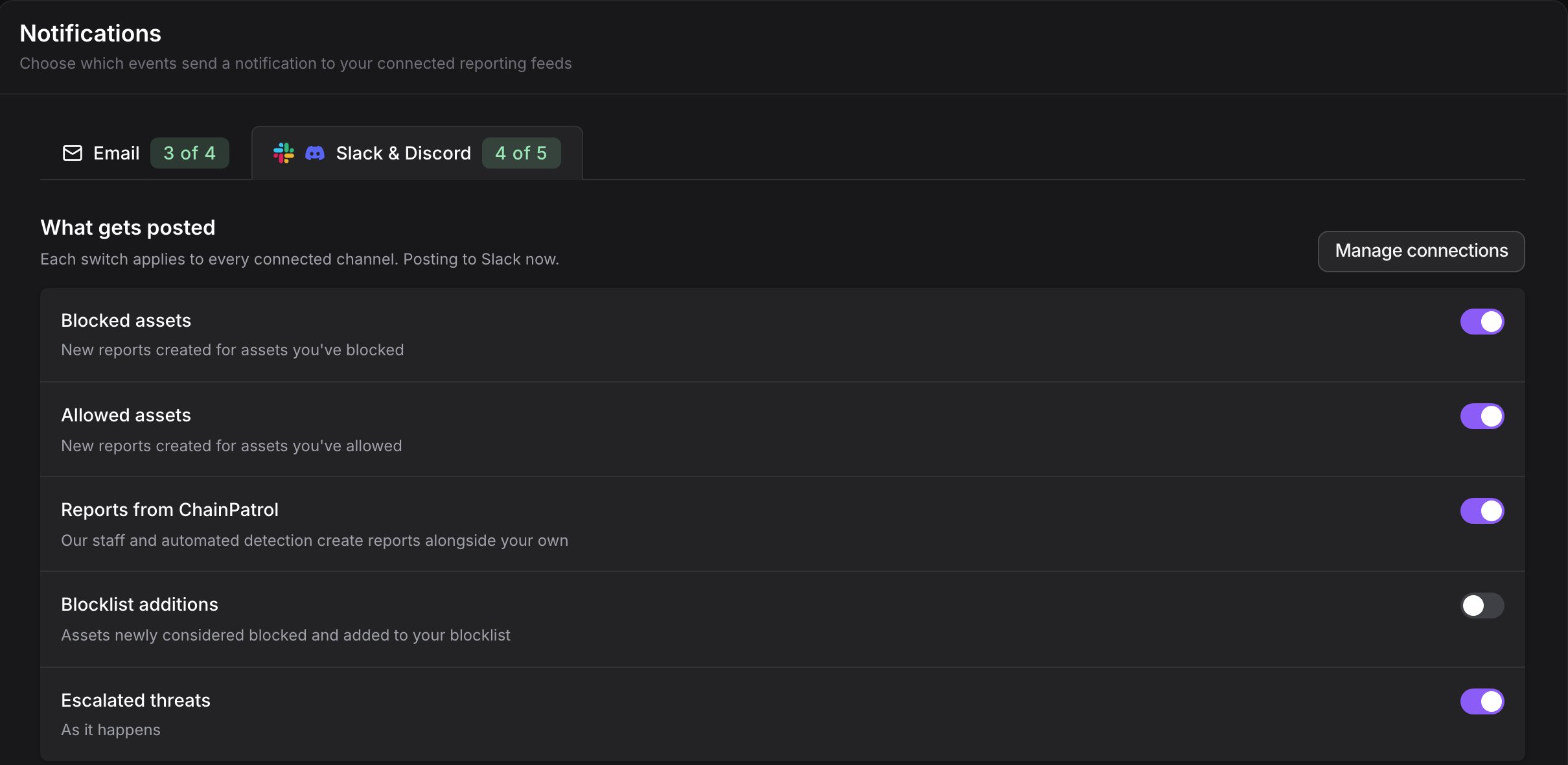
Each switch applies to every connected Slack and Discord channel. The tab shows how many switches are on (for example, 4 of 5), and Manage connections takes you to Settings → Integrations. If no Slack workspace or Discord server is connected yet, the tab shows a Connect button instead.
Escalated threats can also go by email. Set that up in the Email tab of the same page.
If Dark Web Monitoring is on for your organization, the bot also posts to your alert channel when leak mentions for one of your monitored email domains go up. This alert isn’t controlled by the settings above.
Manage workspaces
Each connected workspace has its own row on the Slack integration page, with these settings:- Workspace brand: the brand that reports from this workspace default to.
- Alerts it receives: alerts for every brand, or only for one brand. Useful when each brand has its own team and workspace.
- Alert channel ID and Auto-reporting channel ID: see Setup and In your shared channel.
- Add another workspace: connect more than one Slack workspace to your organization. Contact ChainPatrol support if alerts don’t reach the extra workspaces. A workspace can also be connected to more than one organization.
- Update permissions: shown when a workspace hasn’t given ChainPatrol all the Slack permissions it needs. Click it and approve again in Slack, choosing the same workspace.
- Disconnect: click the trash icon on the workspace’s row. Your organization stops getting alerts there, and people there can no longer report to it. To reconnect, click Add to Slack again.
Troubleshooting
Slack says my team isn't linked to any organization
Slack says my team isn't linked to any organization
The workspace was installed, but not connected to an organization. An Owner or Admin can click Add to Slack again and pick the organization on the Connect Slack page.
Alerts aren't arriving
Alerts aren't arriving
Check that the workspace’s row shows Alerts to a channel, not “No alert channel set”. Make sure the bot is in that channel (
/invite @ChainPatrol), and that the alerts you expect are turned on in Settings → Notifications.I can't save a channel ID
I can't save a channel ID
The channel must be in the workspace you’re editing. For a private channel, add the ChainPatrol app to it first. An auto-reporting channel must also be shared with ChainPatrol.
The report form has no Attachments field
The report form has no Attachments field
Your workspace was installed before attachments were added. Click Update permissions on the Slack integration page, or install the app again.
Privacy
When someone reports from Slack, the report stores:- The reported assets, description and any attachments.
- The reporter’s Slack user ID and display name, and your workspace’s Slack address.
- When reporting from a message: who wrote the message, a link to it, the channel name and the message text.