Install the ChainPatrol Discord bot to let members report scam URLs, monitor channels for phishing links, and stream blocklist reports to a feed channel.
If you have a Discord server, you can use the ChainPatrol Discord bot
to let your server members submit scam reports to ChainPatrol. The bot will generate new
reports that get sent to your admin dashboard for review.
If you have a dedicated scam-reports channel, we recommend pinning a message
in this channel and directing your server members to use the bot there for
easy reporting
To add the bot to your server, you need to be an admin of the server. Then, you
can use the following link to add the bot:🚀 Add ChainPatrol to your serverNext, you need to configure the bot to send reports to your admin dashboard on ChainPatrol. Right now,
this is can be done by reaching out to us via email
and letting us know that you want to add the bot to your server. We will create an organization
for you on ChainPatrol and you can then use the /setup connect slash command to link your Discord server
to your organization on ChainPatrol.To check that the bot is working, you can use the /setup status command to see if the bot is
connected to your ChainPatrol organization.
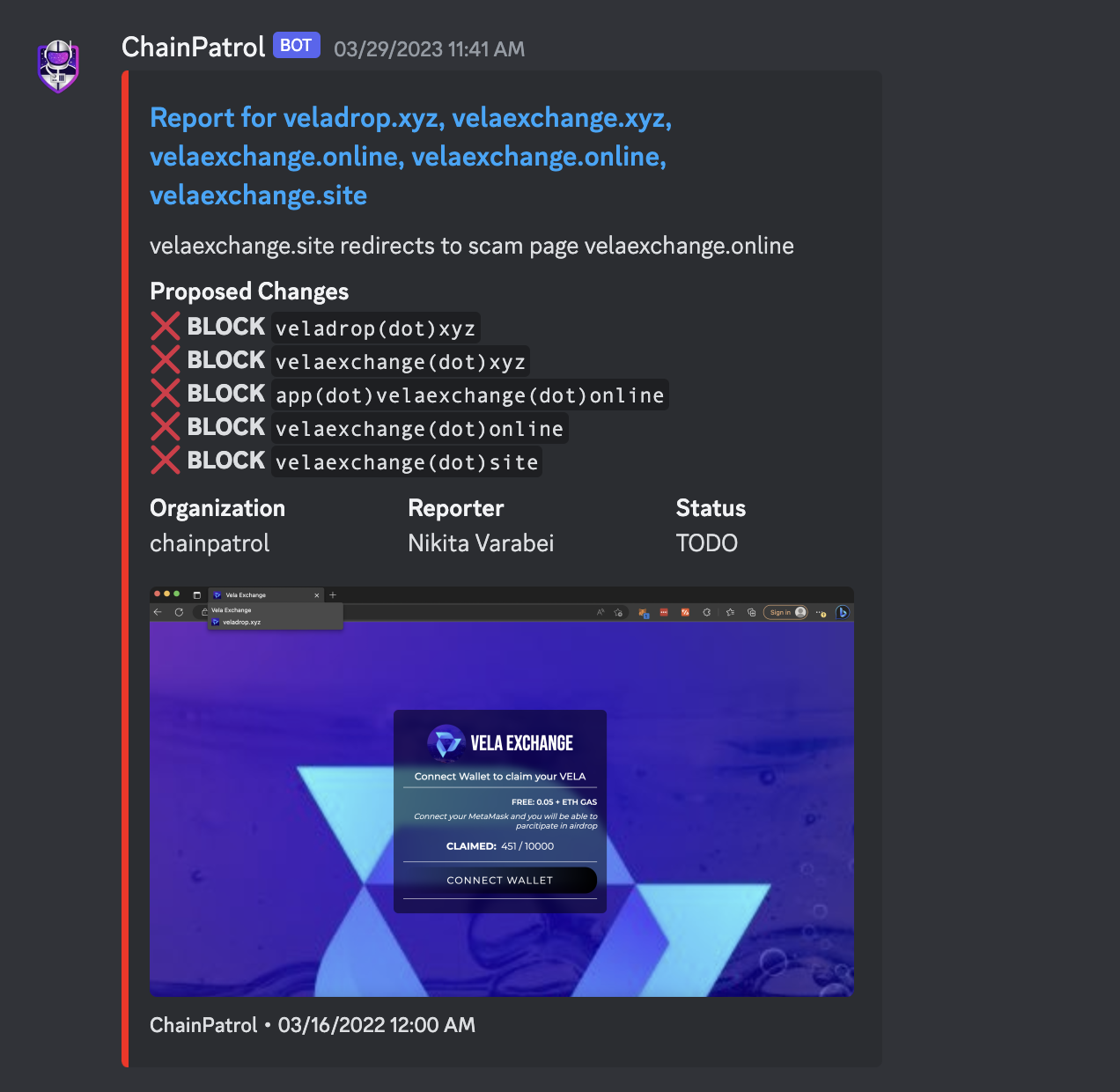
You can create a feed channel of all reports to your organization. This feature allows you to see all scam reports submitted through the bot in a dedicated channel.
Create a new channel on your Discord server and name it something like chainpatrol-reports
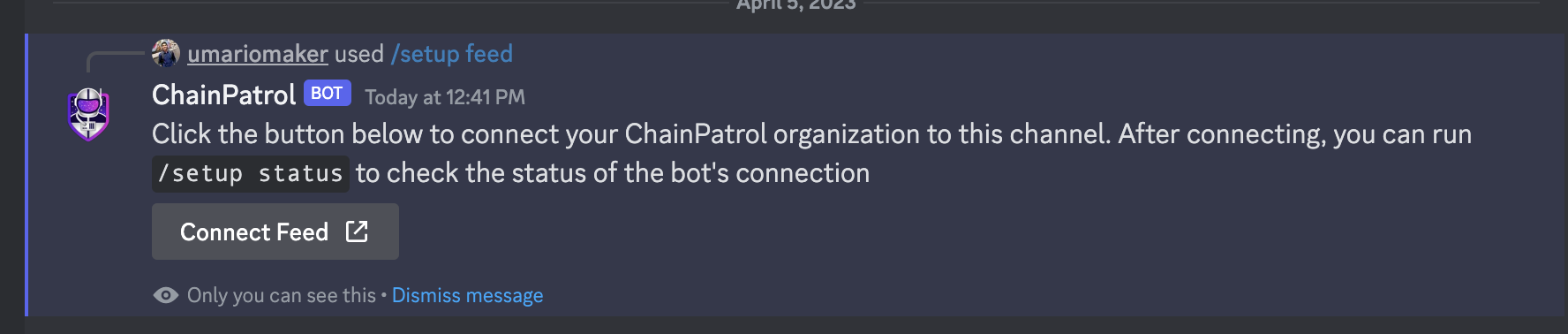
Use the following command to link the channel to your ChainPatrol organization:
/setup feed <channel>
Follow the instructions in the bot’s response to link the channel to your ChainPatrol organization
You can check that the feed is connected correctly by running the /setup status command. If the
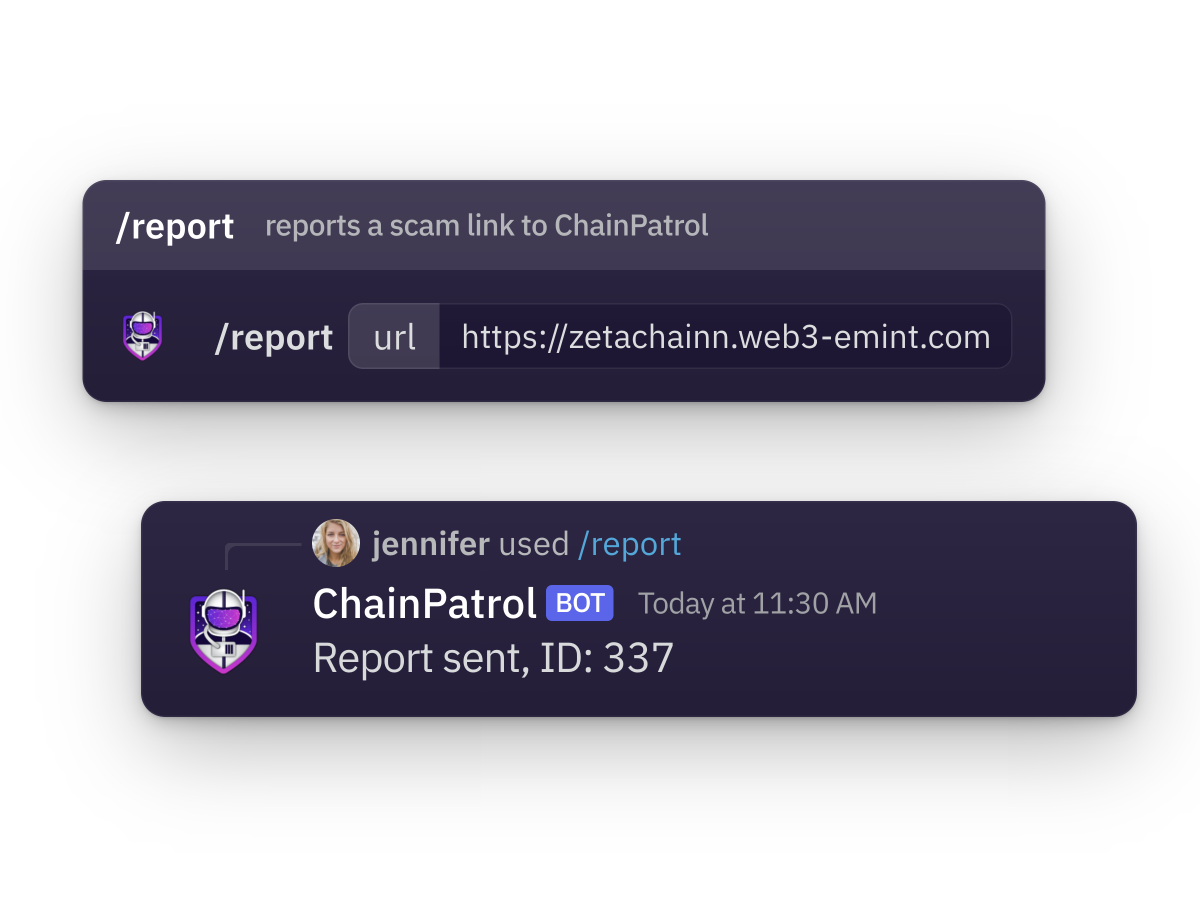
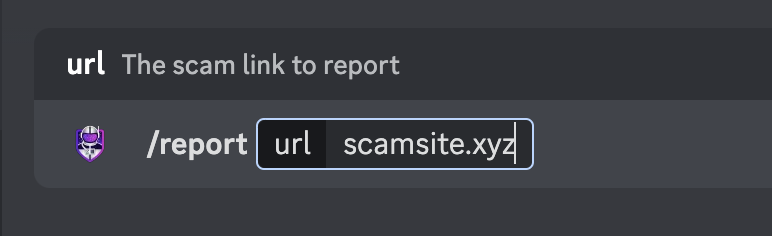
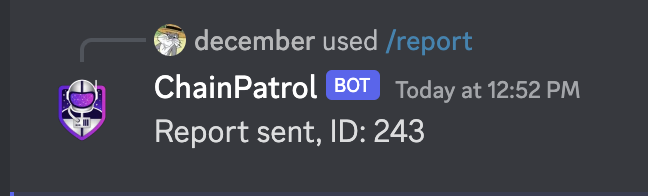
feed is connected correctly, you should see the channel name in the bot’s response.As a final test, you can try submitting a test scam report using the /report command. You should see a message
in the feed channel with the scam report shortly after submitting.
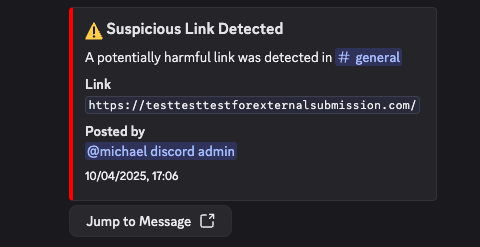
ChainPatrol can monitor your Discord channels for suspicious links and automatically take action when they are detected. This feature helps protect your community from scams and malicious content.
Monitor all messages in the configured channel for URLs
Check each URL against ChainPatrol’s comprehensive blocklist, which includes:
Known scam websites
Phishing attempts
Malicious domains
Other security threats reported to ChainPatrol
Take action based on your server’s configuration when suspicious links are detected
The blocklist is continuously updated with new threats reported by the
ChainPatrol community and security researchers. You can search through our
blocklist to see what threats we’re
protecting against.
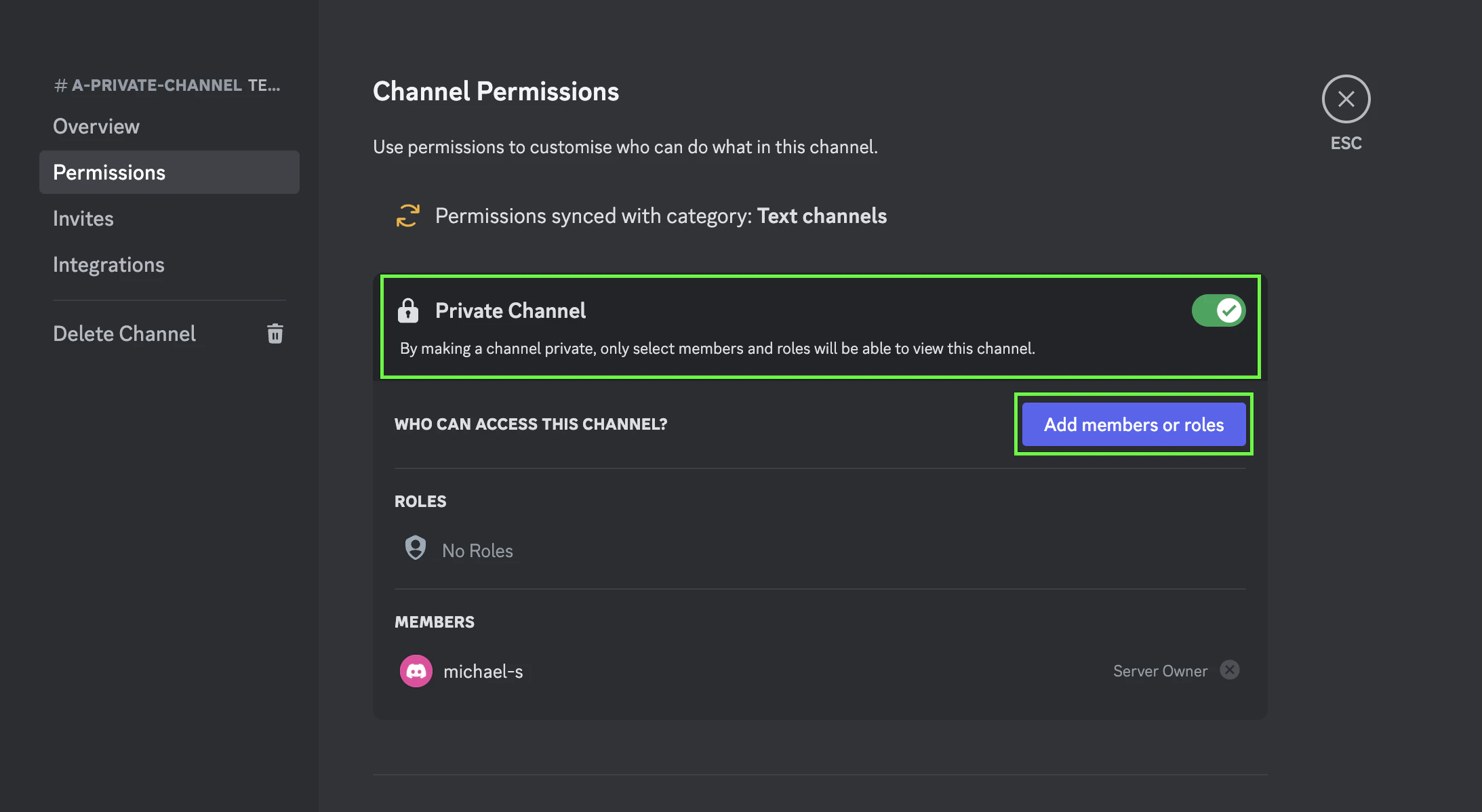
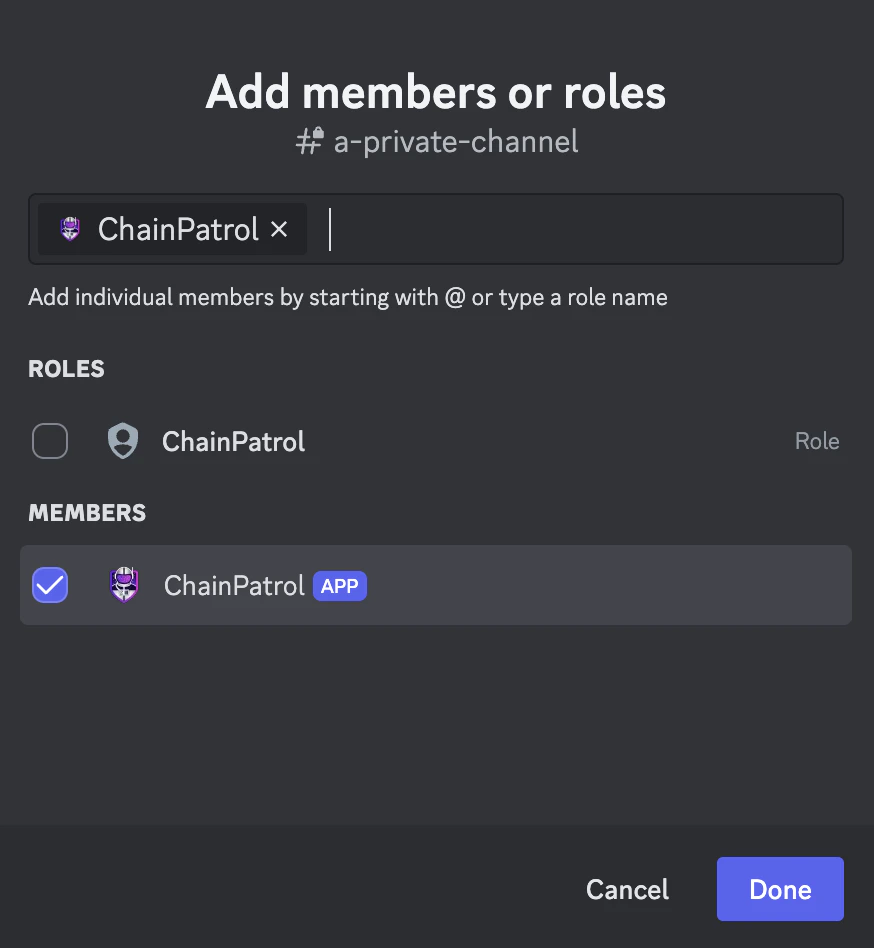
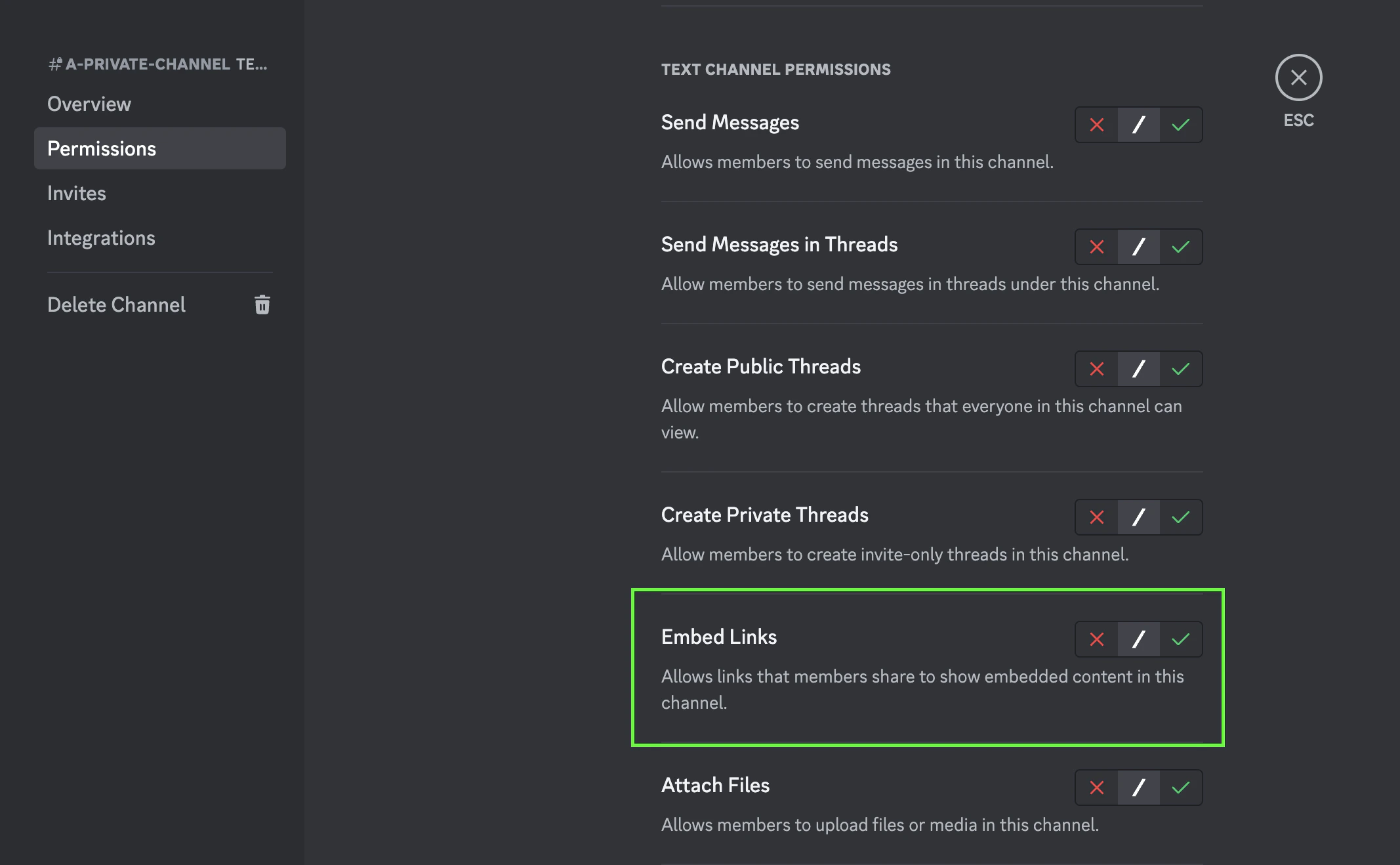
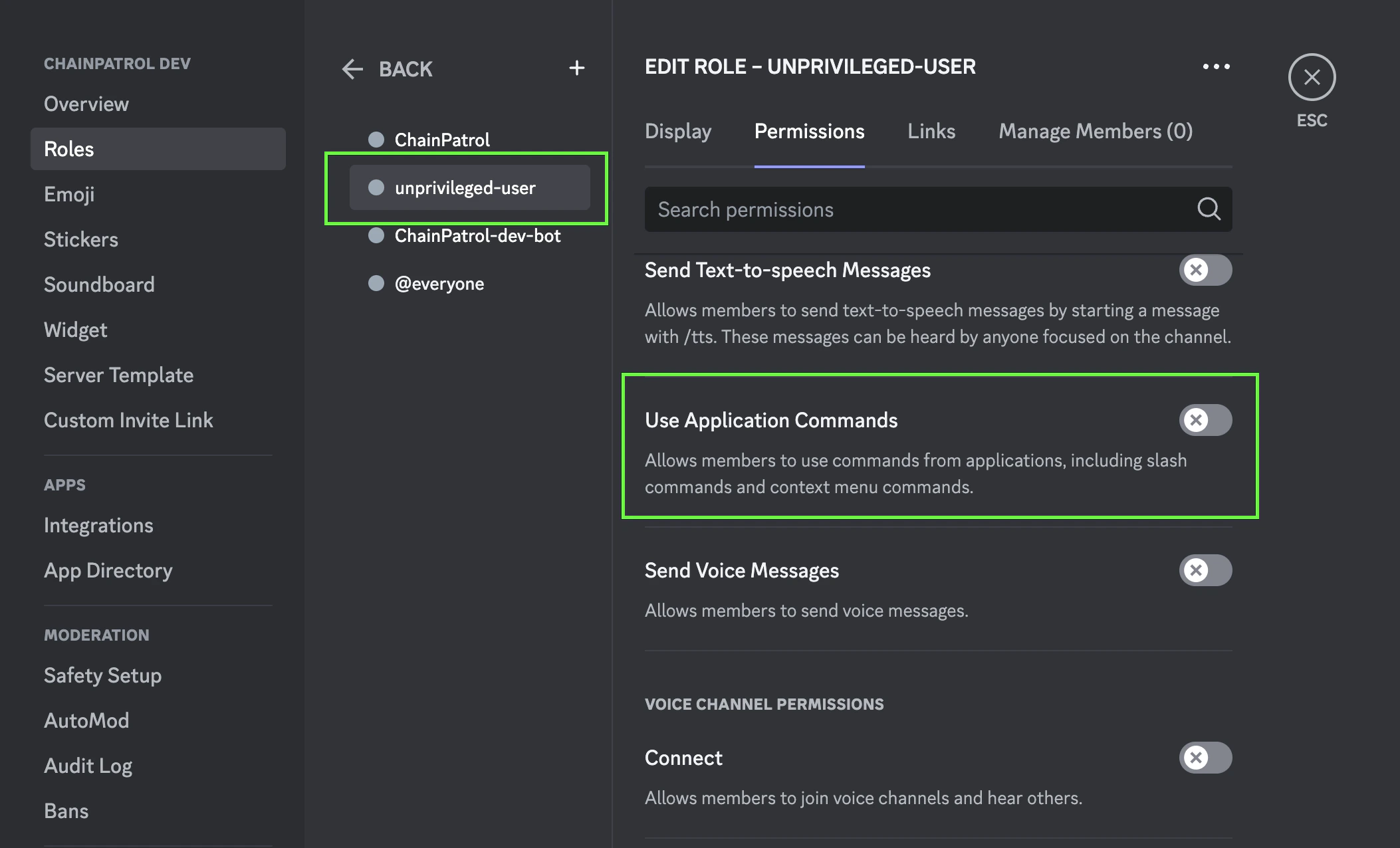
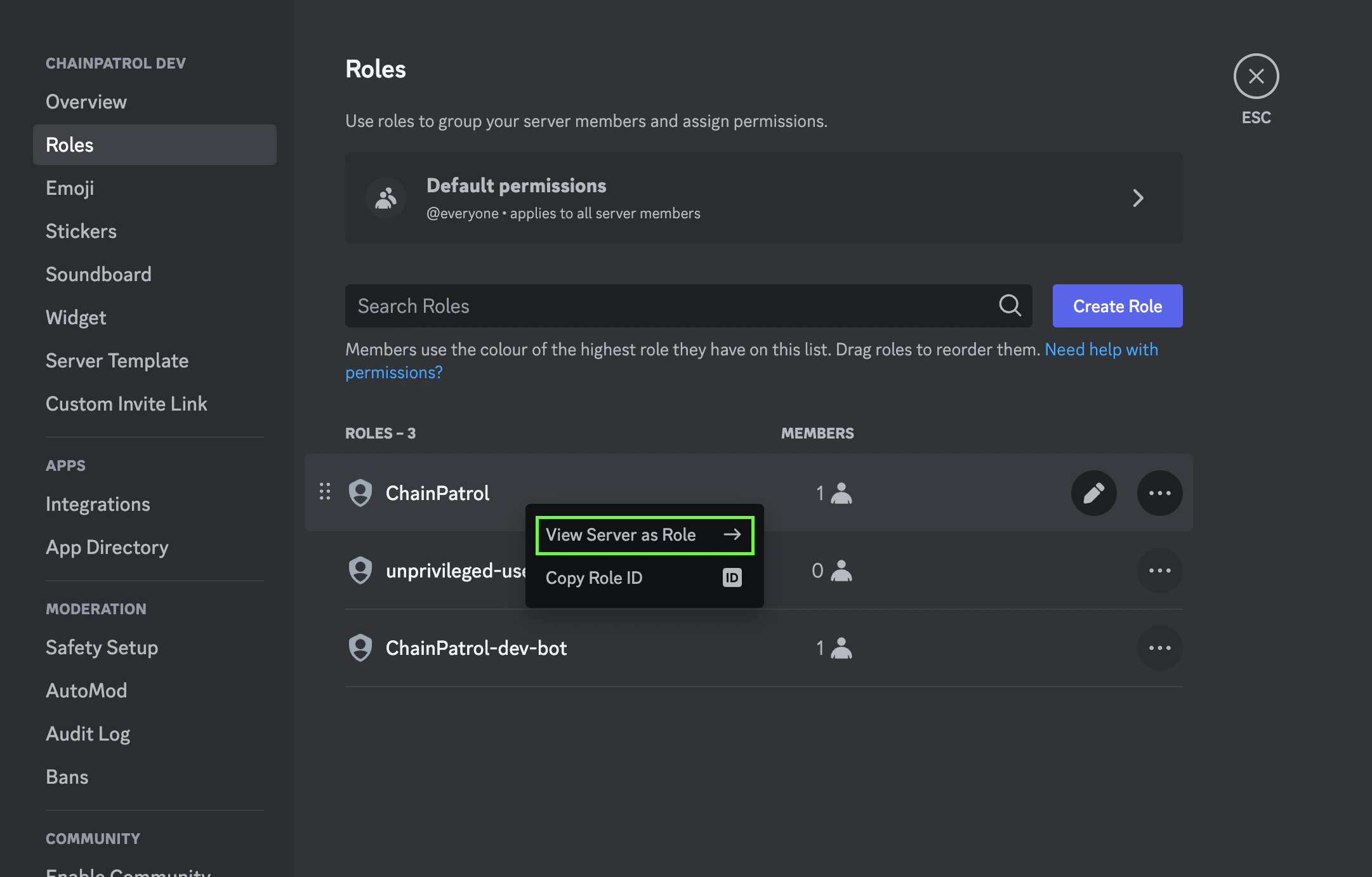
You can right click the ChainPatrol role in server settings to see the server as the bot role
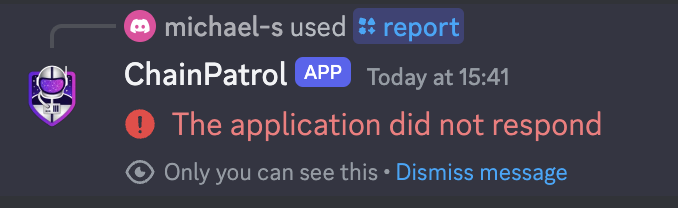
Trying to access a feature in an inaccessible part of the server will lead to
an error. Make sure the bot’s permissions can see and interact with what you
are debugging.Check out Discord’s Role Management 101 Article for additional help!
The bot does not collect any personal information. It only collects the URL and
the Discord ID for the user that submitted the report (in case a moderator needs
more information about why the URL is a scam). The bot does not store any information
about the server it is added to.For more information, please read ChainPatrol’s privacy policy.